Truth Game: The Dream
Quick Facts:
- Engine: Unreal Engine 5
- Programming Language: Blueprints
- Single-player
A vivid dreamscape platformer where a young teenager's imagination turns into a series of strange challenges.
Project Overview
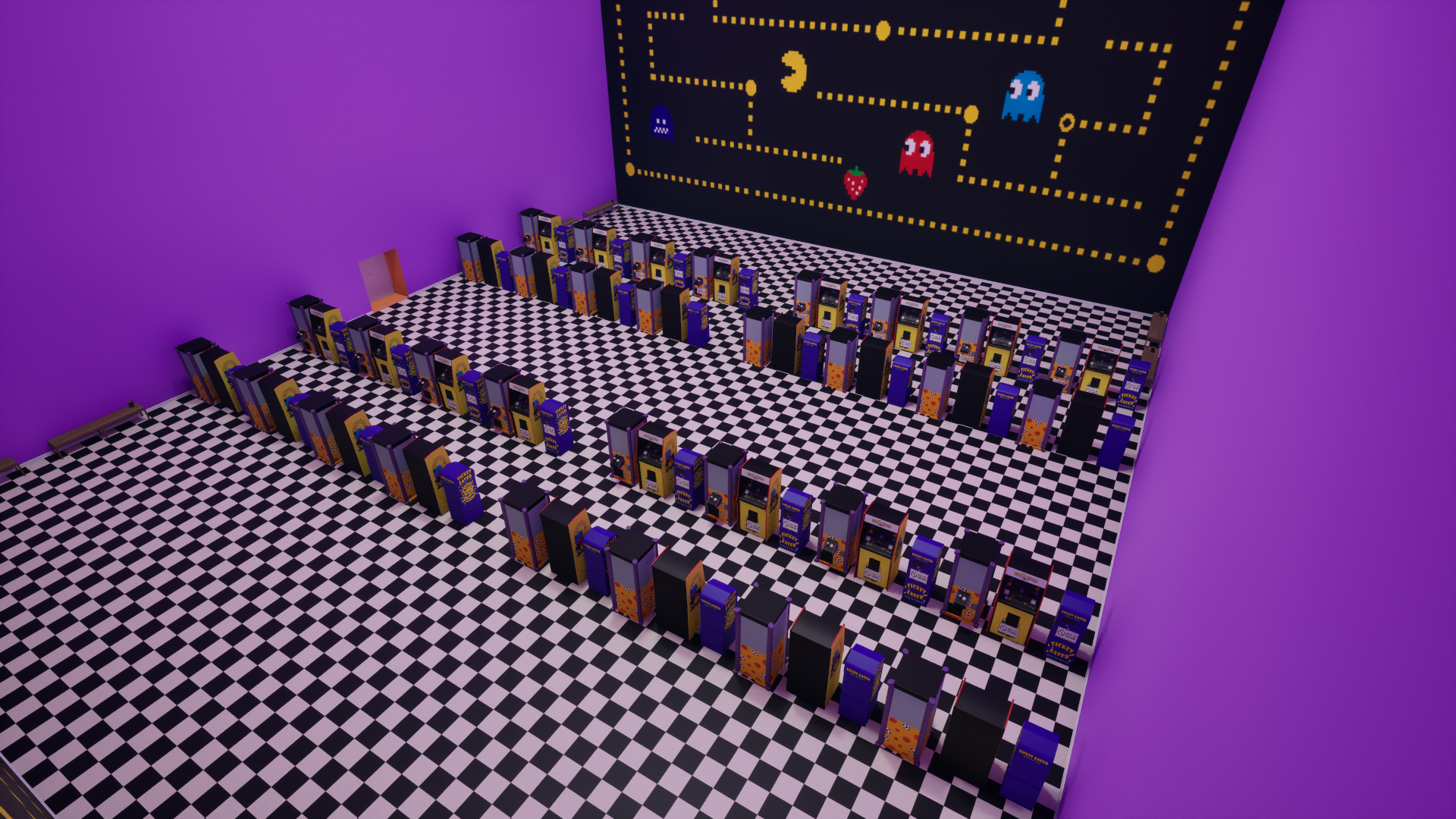
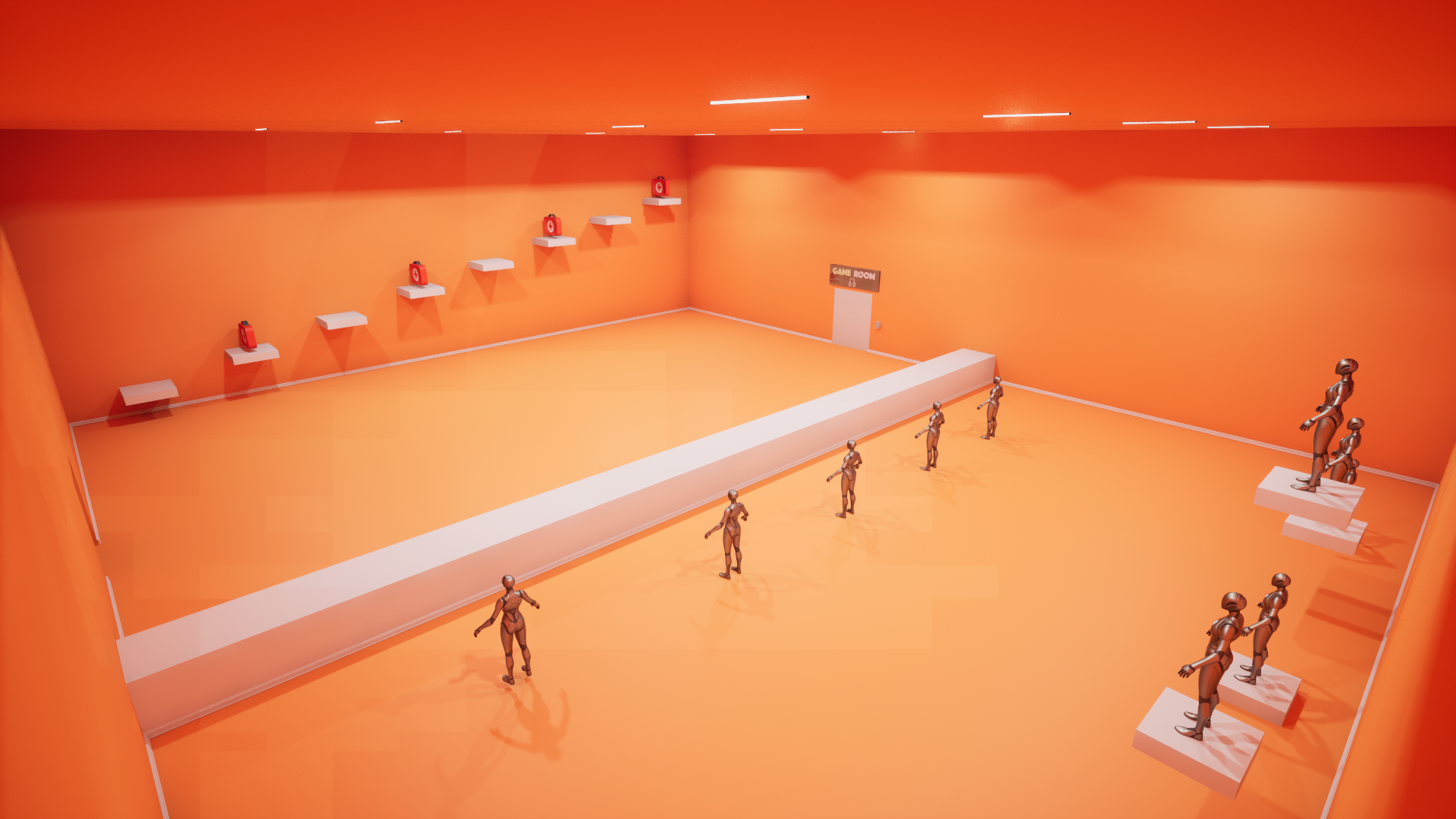
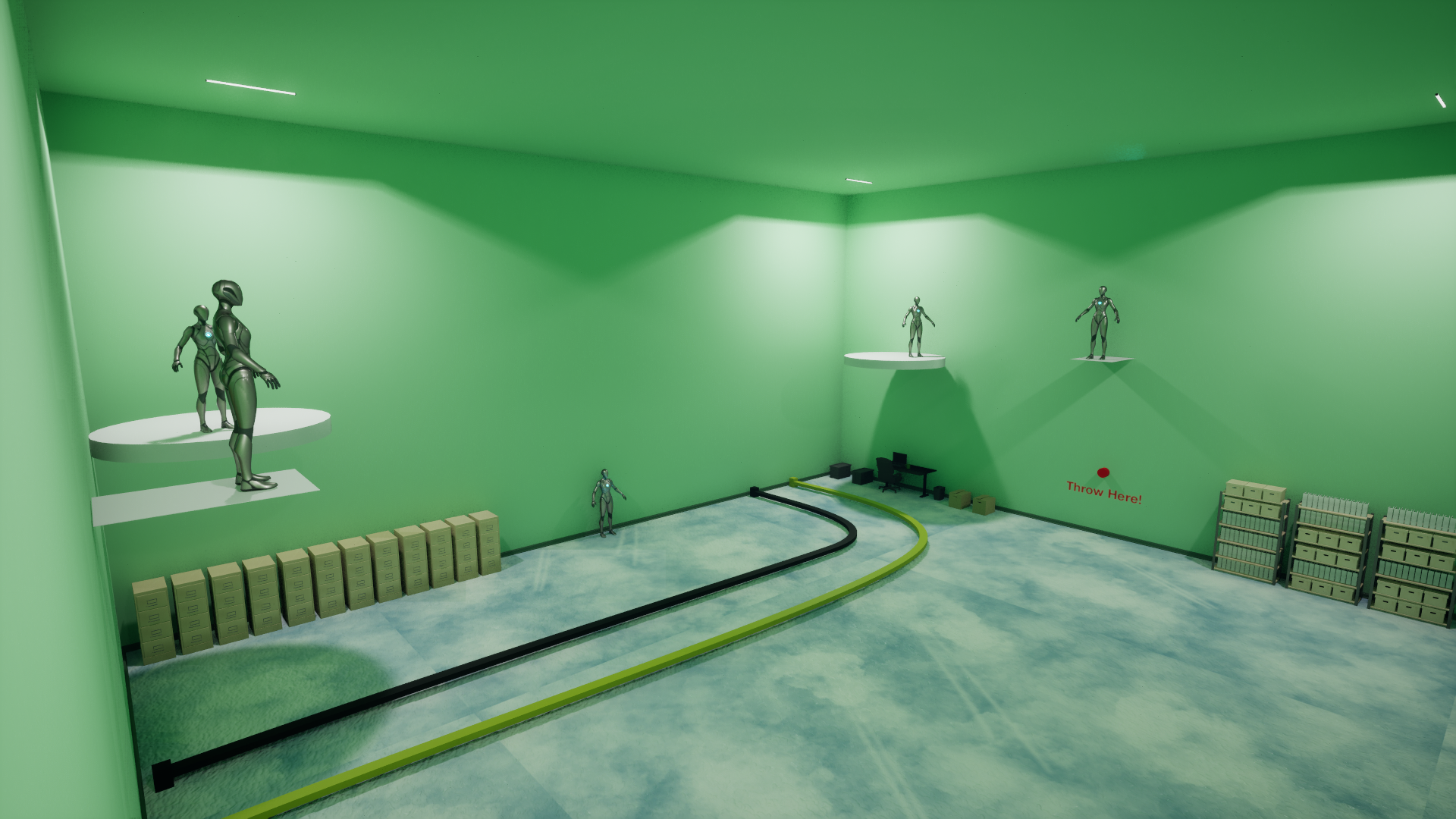
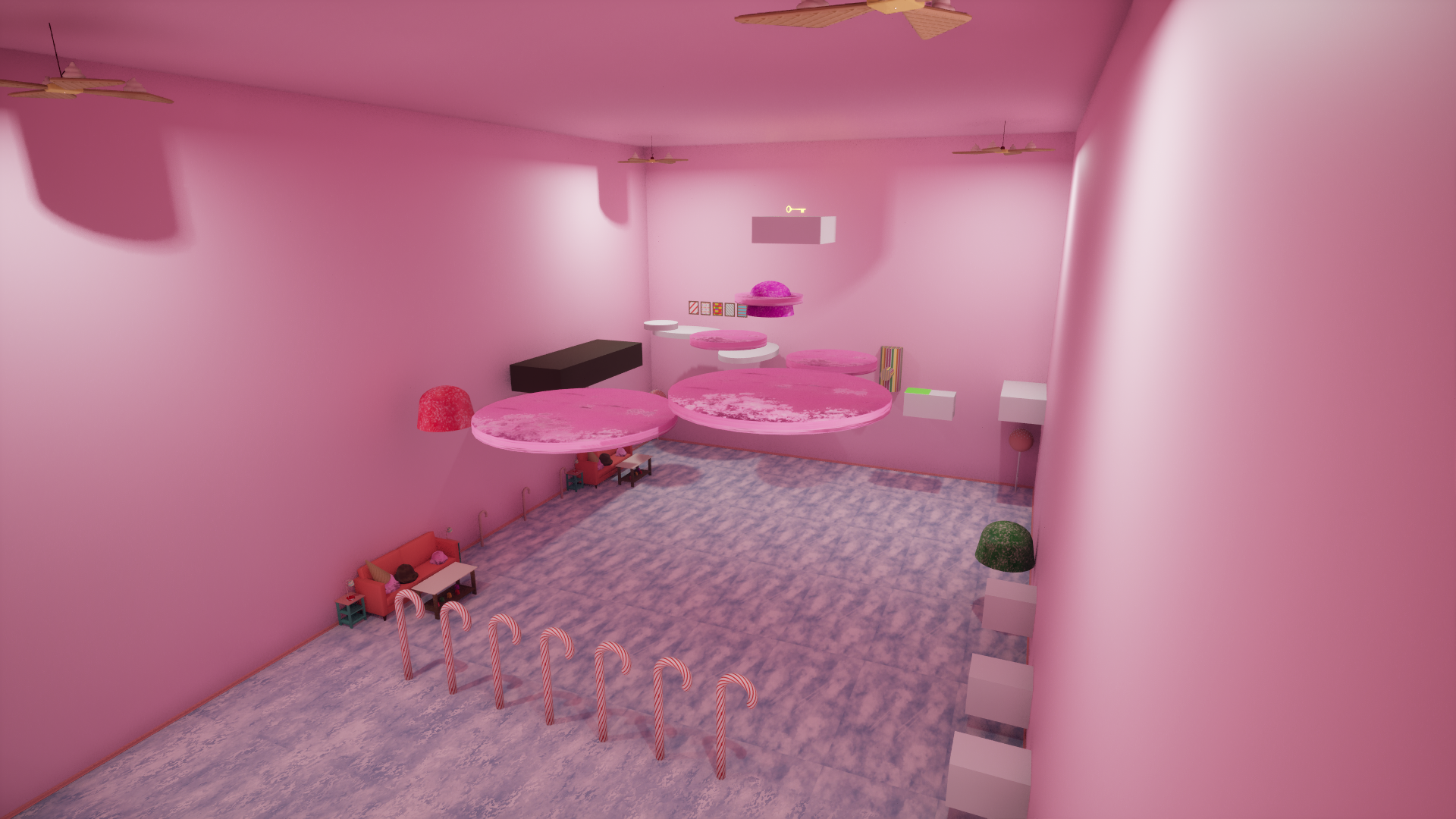
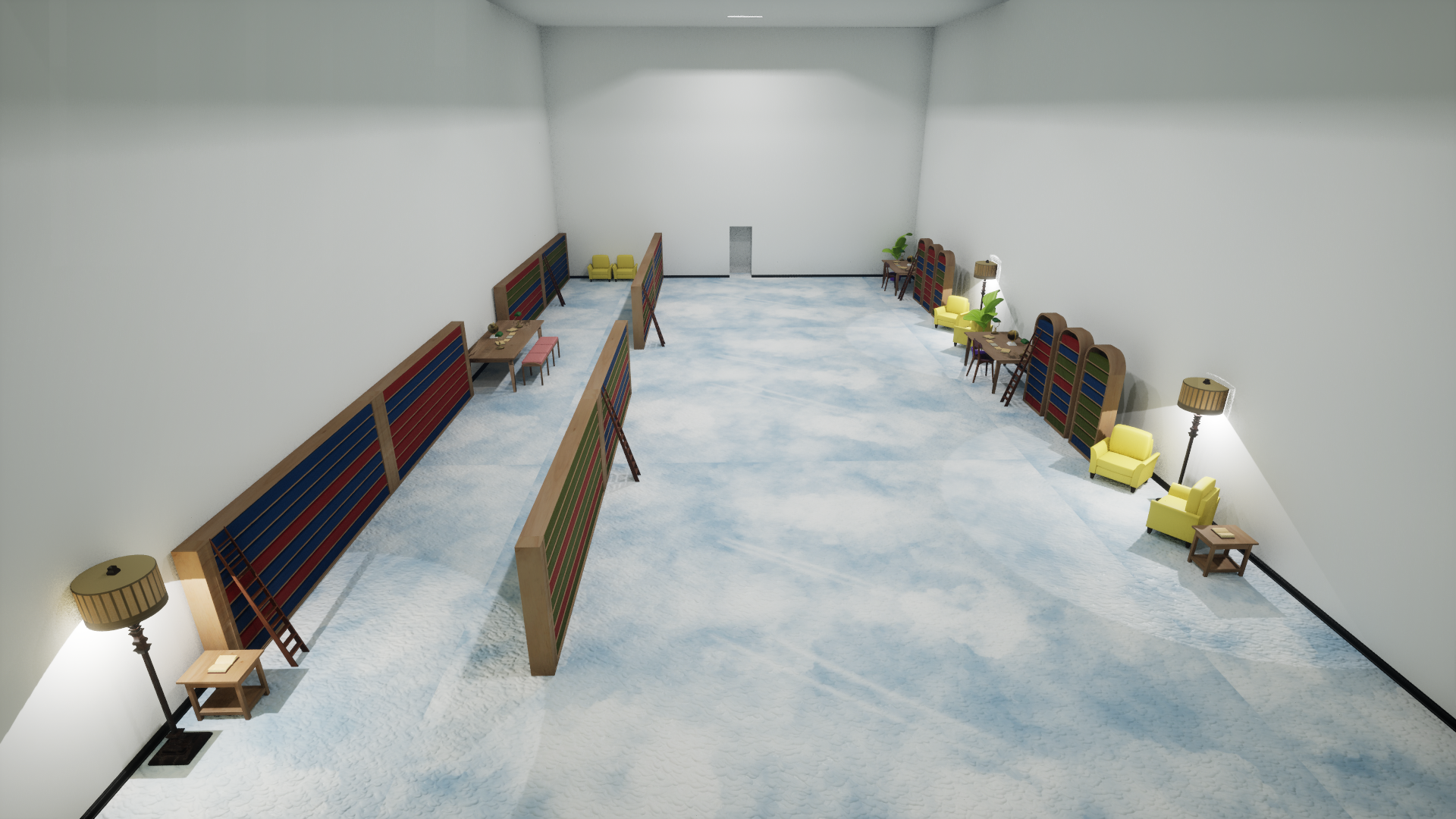
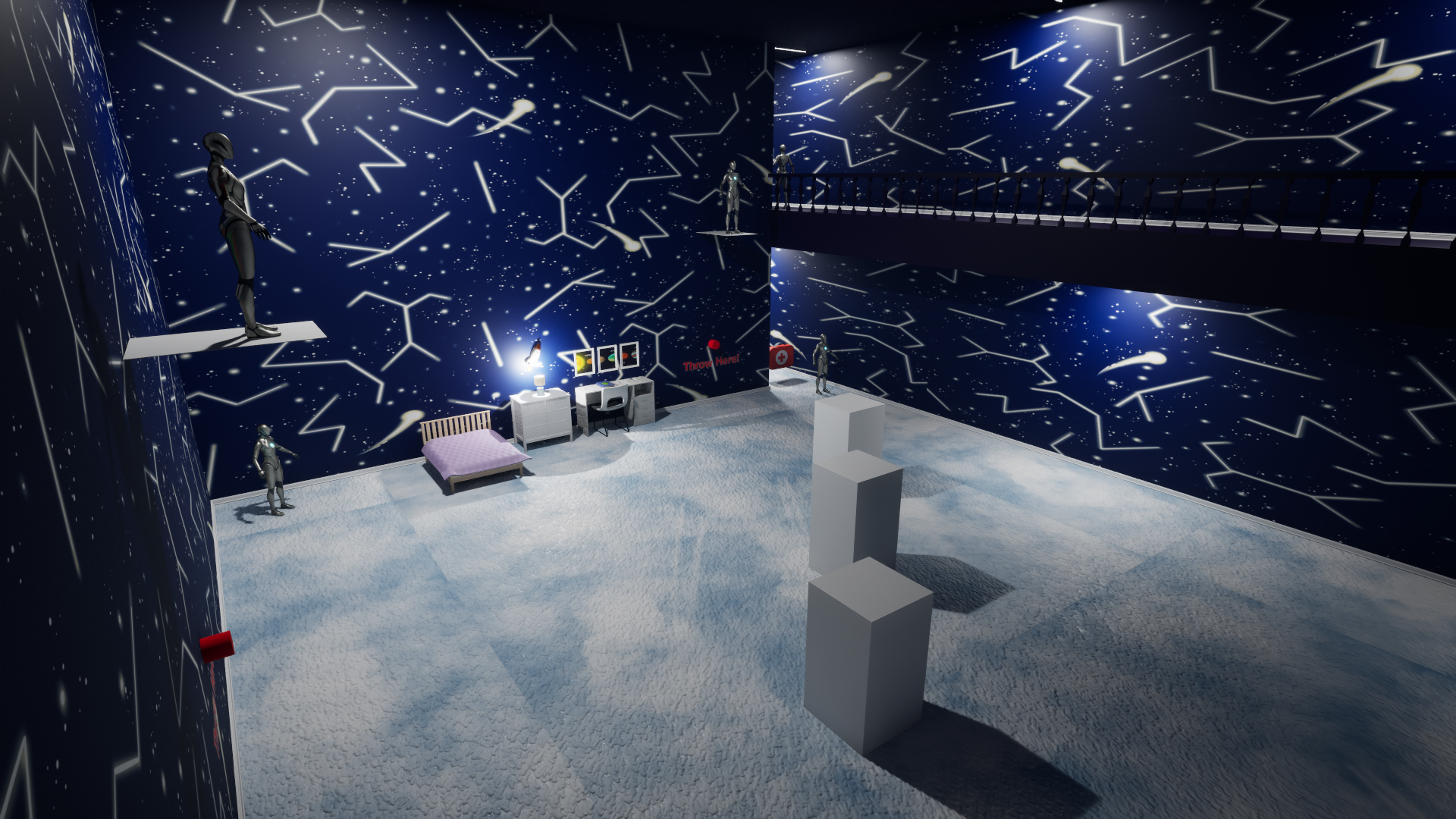
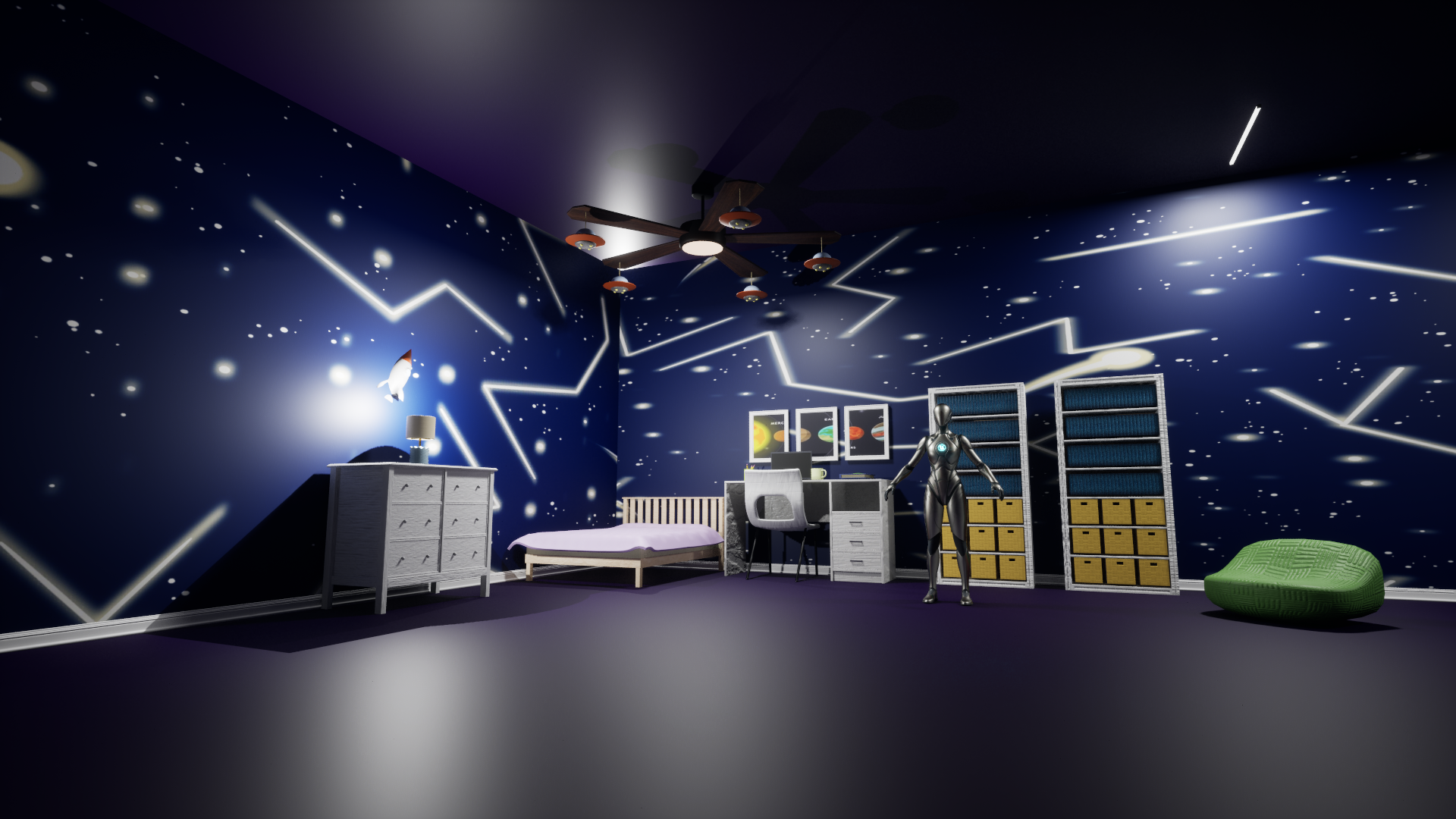
This game is a platformer with light combat set inside the intense dream of a young teenager. The player collects keys to unlock five rooms based on the teenager's interests, including space, candy, escape rooms, reading, and arcades. As the player progresses, the game introduces new challenges, such as defeating aliens, platforming across candy, solving wire puzzles, placing platforms to reach higher areas, and completing keypad puzzles. Aliens are a recurring theme in the dream, and they attempt to stop the player from completing the challenges. After collecting all five keys, the player returns to the hallway and stands on the glowing green cube to end the dream. The game concludes with the teenager waking up and discovering that the alien invasion from his dream is beginning to happen in real life.
Gameplay Trailer
Credits
- Programmers: Shivam Patel, Noah Mezick
- Designers: Ryan Gleeson
- Artists: Olivia Bultinck, Lily Cruz, Chloe Baker
Key Features Programmed
- Programmed alien projectile attacks that spawn and throw cubes at the player
- Implemented a pickup-and-throw combat system where the player uses cubes to damage aliens
- Built a point-based platform placement system with collision validation
- Created color-coded wire connection puzzles
- Developed a checkpoint respawn system for platforming sections
- Implemented key-based and event-triggered door systems
- Designed and implemented player-facing UI systems that communicate objectives, controls, and feedback
- Added sound effects throughout the game to provide feedback and create a more immersive gameplay experience
Code Samples
Aiming Cubes
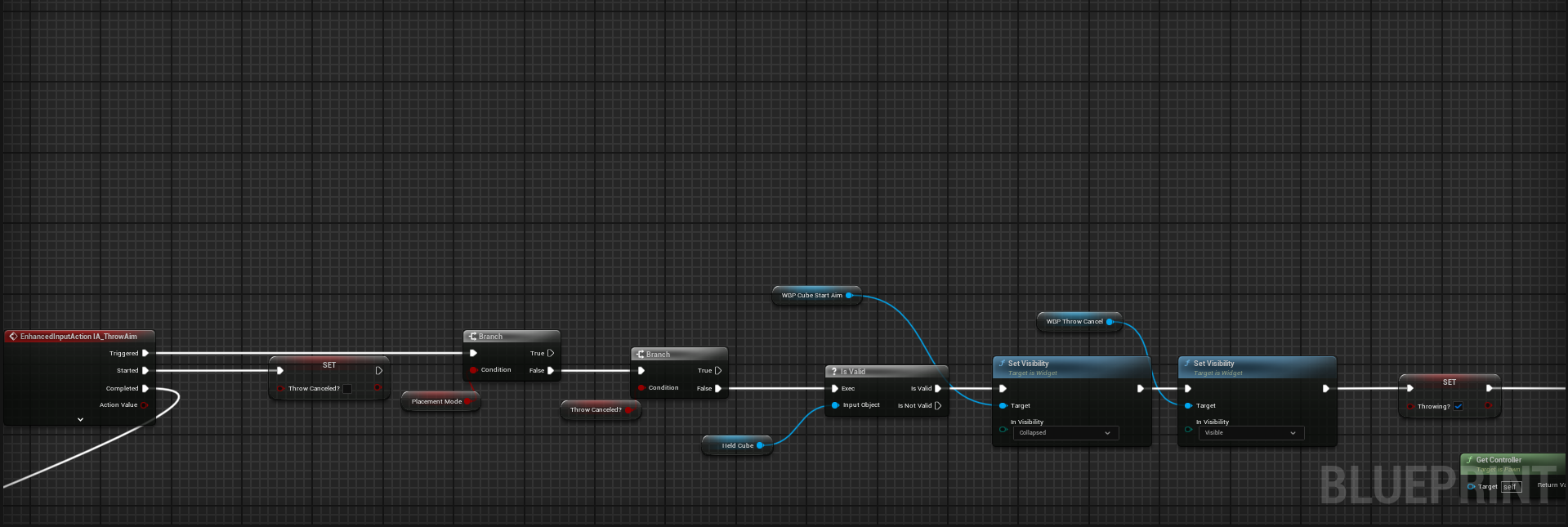
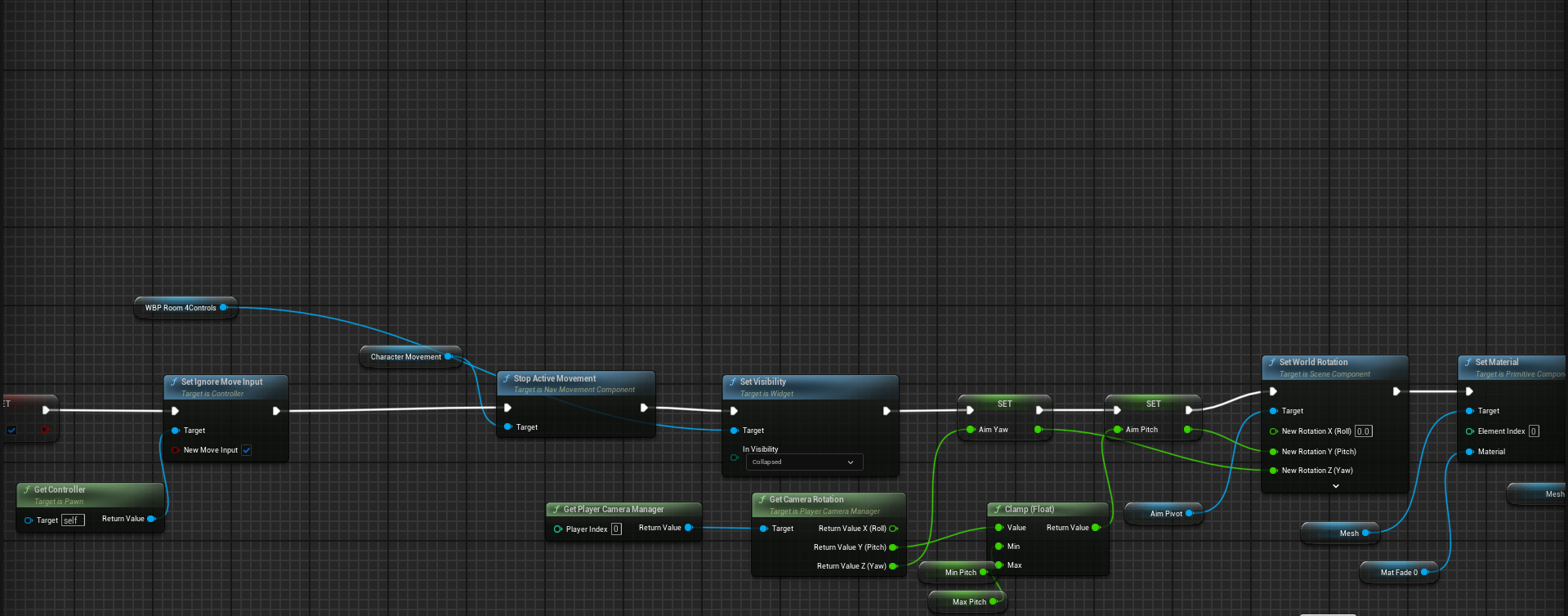
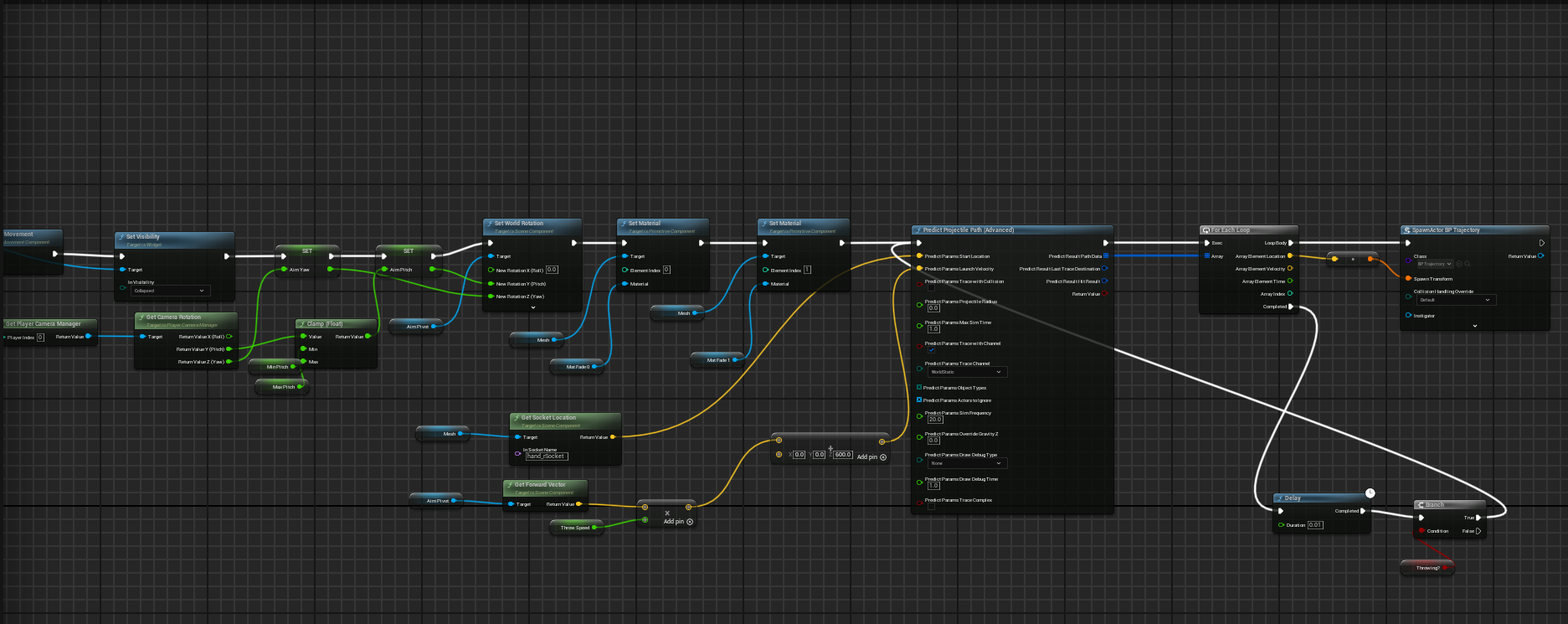
This Blueprint handles the player's cube-aiming mode when they are holding a cube. When the player holds their middle mouse button, the system continuously checks that the player is not in placement mode and that they are holding the cube before showing the aiming UI and locking player movement. It then uses the camera's rotation to control the aim pivot, clamps the pitch so the player cannot aim too far up or down, and updates the player's material to be more transparent, allowing the player to see the predicted trajectory. While aiming, the Blueprint predicts the cube's projectile path using the throw socket location, aim direction, throw speed, and gravity settings, then spawns trajectory markers along the predicted path so the player can preview where the cube will travel before throwing it. The trajectory markers after being spawned are coded to destroy themselves and to be respawned, allowing for near instant updates for the player's aim.
Throwing Cubes
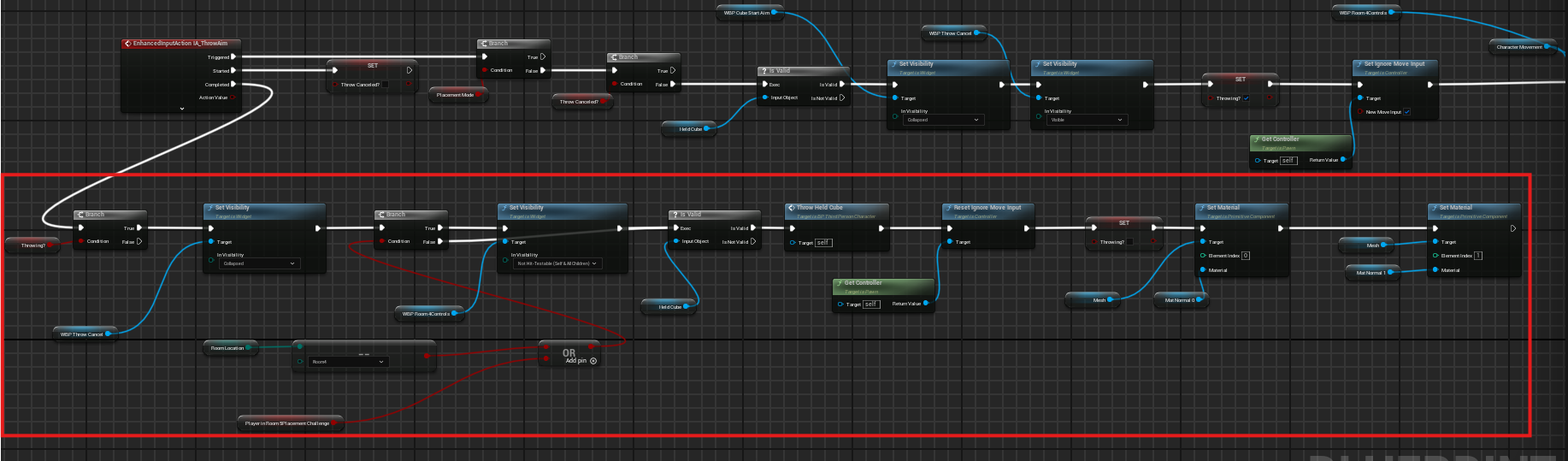
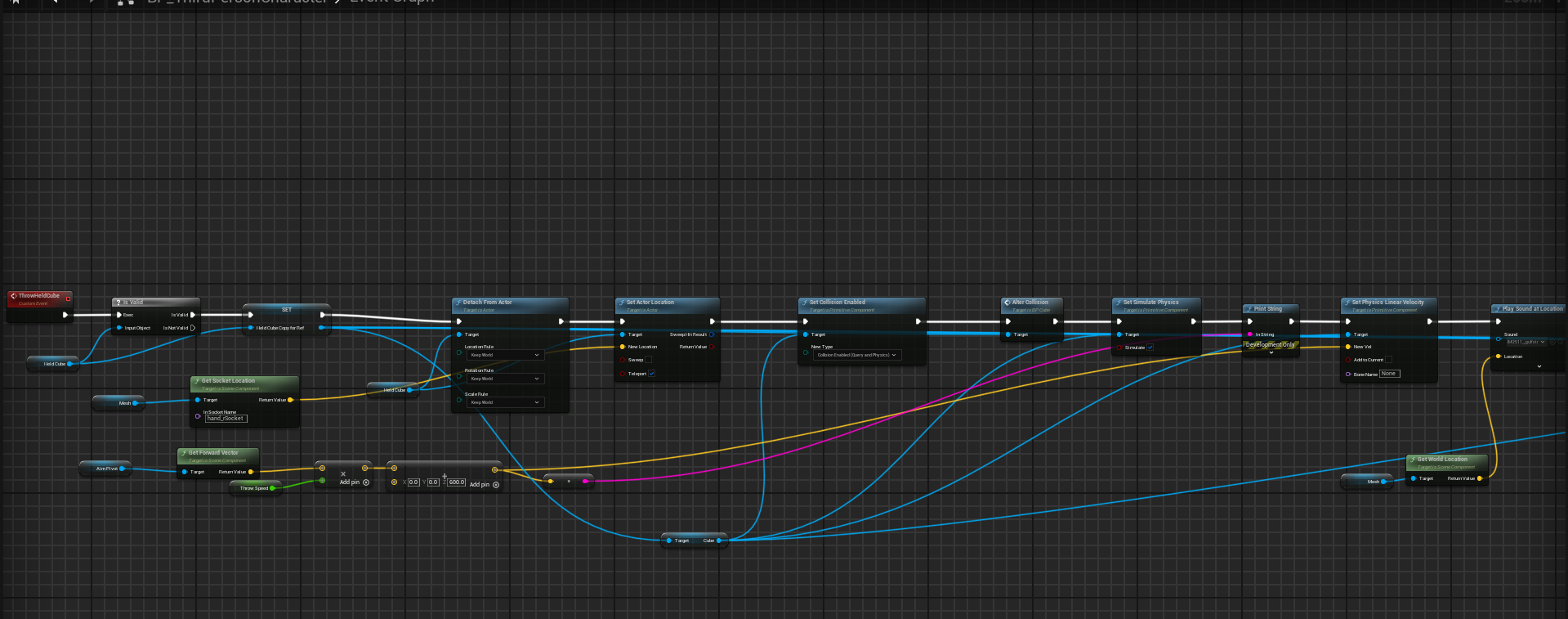
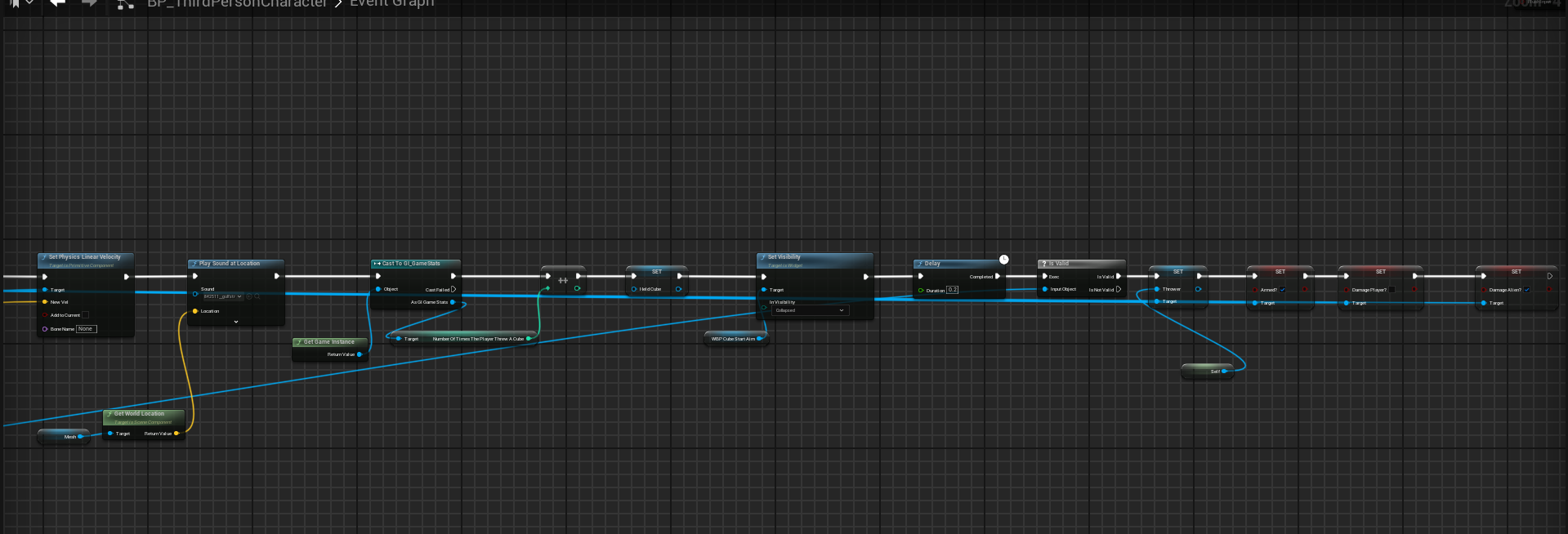
This Blueprint completes the cube-throwing system after the player finishes aiming. When the throw input is released, the system checks that the player is currently aiming and holding the cube, then hides the throw UI, restores player movement, and resets the player's material back to its default state. The held cube is detached from the player, given physics and collision again, and launched forward using the aim direction and throw speed. To prevent the cube from immediately colliding with the player who threw it, the Blueprint calls my custom Alter Collision function, which temporarily disables collision between the cube and pawns for 0.2 seconds before re-enabling it.
Placement Mode
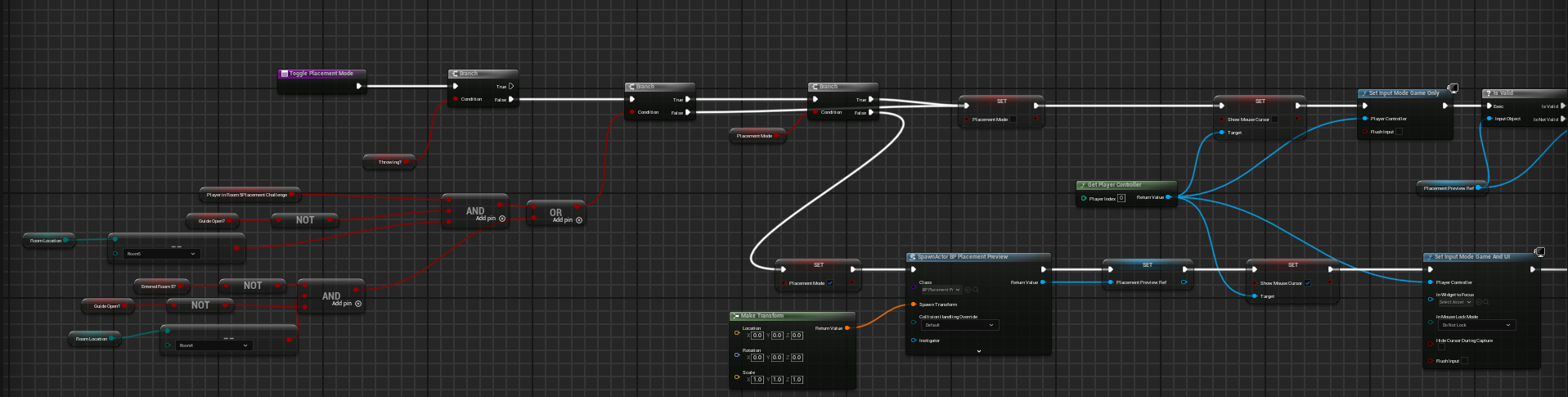
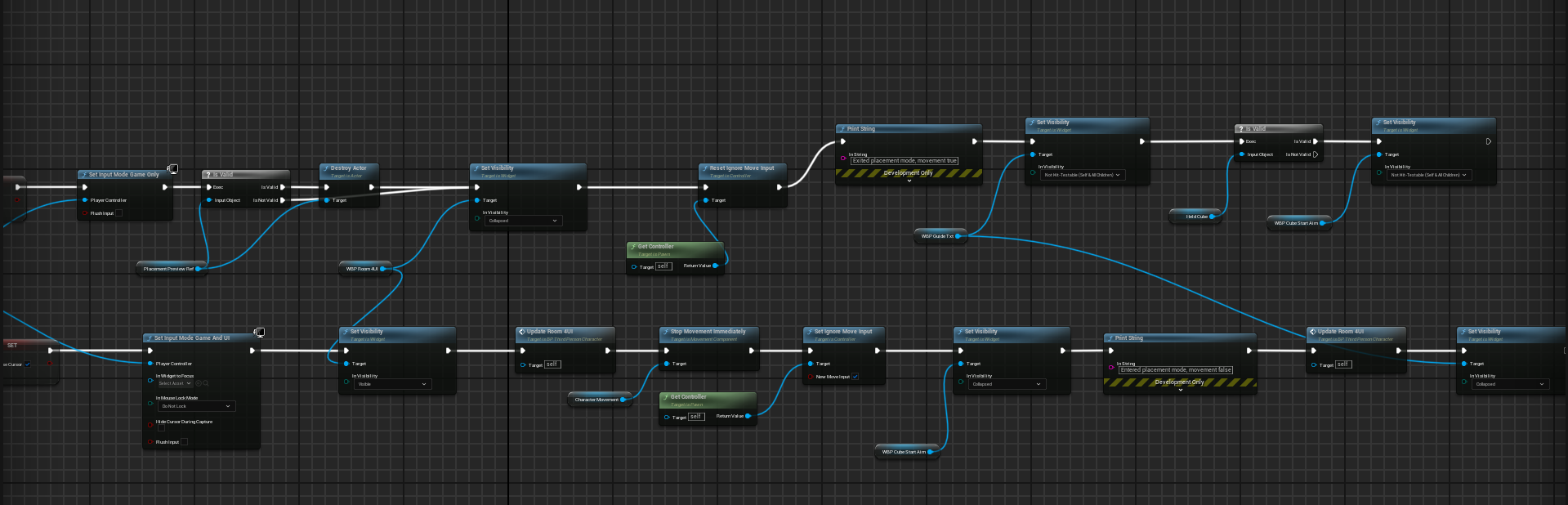
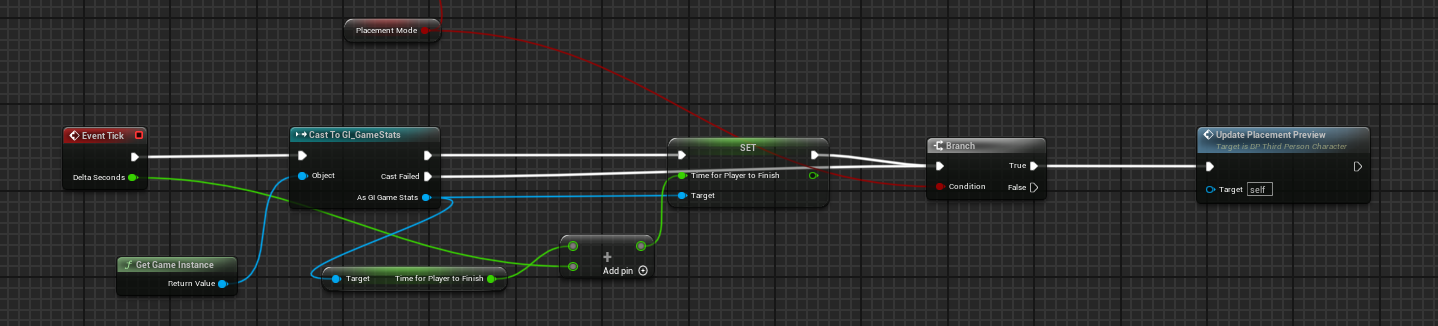
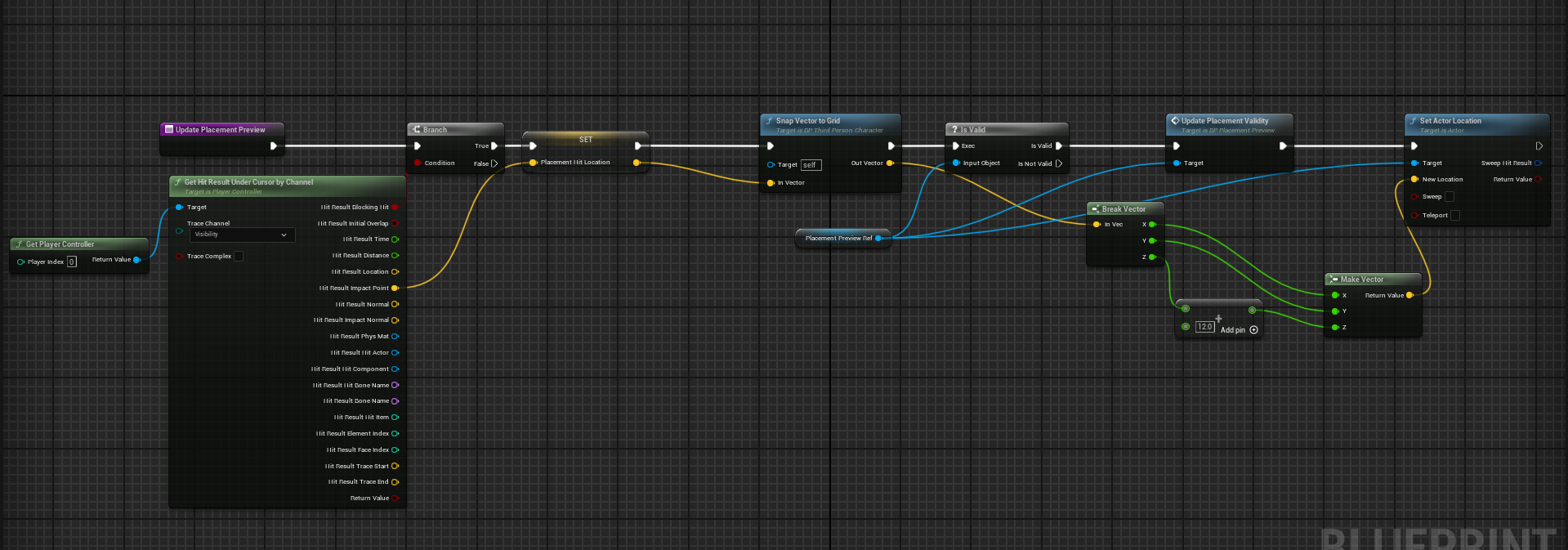
This Blueprint controls the player's platform placement mode. When the player presses P, the system checks that they are not currently aiming a cube and that they are in a room where platform placement is allowed. If those conditions are met, placement mode is enabled, the player's cursor is shown, movement is temporarily locked, and a preview platform is spawned. While placement mode is active, Event Tick updates the preview by tracing under the cursor, snapping the hit location to a grid by calling my custom function, and moving the preview platform to that position. The preview function then calls my custom placement validity function to determine whether the platform overlaps existing world geometry and whether the player has enough placement points for the selected platform type. If the placement is invalid, the preview turns red; if the platform can be placed, it remains green to clearly show the player where they can build.
More Screenshots